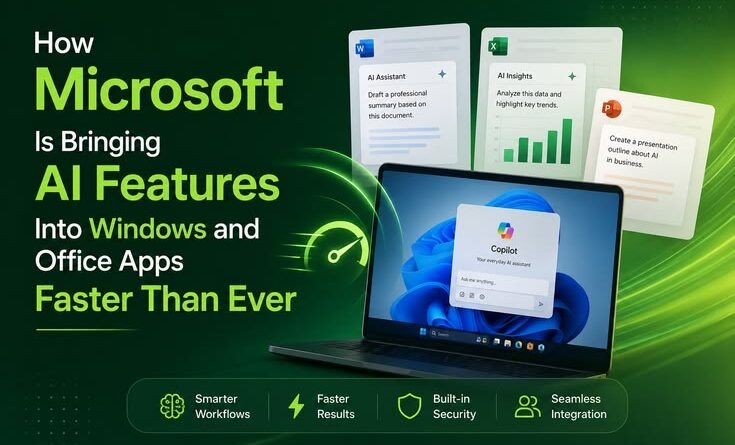
How Microsoft Is Bringing AI Features Into Windows and Office Apps
Last Tuesday, I sat down to draft a quarterly report in Word — nothing exciting, just the usual grind of pulling together bullet points and trying to make 14 pages of data sound less soul-crushing. Halfway through, I clicked the Copilot button almost out of habit, typed “summarize this section and tighten the tone,” and watched it restructure three paragraphs in about four seconds.
I’ve been using computers since Windows XP. I’ve seen a lot of features come and go. But that moment felt genuinely different — not like a gimmick, but like something had quietly shifted under the hood.
Microsoft isn’t just adding AI to its apps anymore. It’s rebuilding them around AI. And the pace at which it’s happening? That’s the part most people aren’t fully tracking.
From a Sidebar Button to the Center of Everything
Cast your mind back two years. Copilot was that button in the taskbar that nobody really knew what to do with. Most of my colleagues either ignored it or accidentally clicked it while trying to minimize a window.
That version of Copilot felt bolted on. An afterthought dressed up as innovation.
What’s happening now is something else entirely. Microsoft has been rolling out advanced AI-driven features across Outlook and Microsoft 365 apps, expanding Copilot’s ability to act directly within Word, Excel, and PowerPoint — moving beyond simple suggestions to actually executing edits and creating content.
That shift from “suggestion mode” to “action mode” is the key change most reviews gloss over. It’s the difference between a GPS that says “turn left in 200 meters” and one that actually turns the wheel.
What’s Actually New (That You’ll Notice Day-to-Day)
Let me break down the changes that are genuinely useful versus the ones that are impressive in demos but useless in real life.
In Word and PowerPoint:
Agent Mode — a feature that originally launched for paid Microsoft 365 Copilot subscribers — is now coming to Word, Excel, and PowerPoint across subscription plans. It allows the AI to complete functions on your behalf, generating complex spreadsheets or documents from a single prompt.
I tested an early version of this building a presentation from a rough one-page brief. The output wasn’t perfect — it made some layout choices I’d never make — but the skeleton was usable in under two minutes. Editing a bad draft is always faster than staring at a blank slide. That’s the honest value proposition here.
In Outlook:
This is where things get genuinely interesting — and also a little unsettling if you think about it too hard.
Microsoft has introduced experimental “agentic AI” features in Outlook through its Frontier for Business program, enabling natural language commands like automatically accepting meetings or drafting follow-up emails. These agents extend beyond drafting to managing inbox priorities, summarizing missed communications, and reorganizing calendars.
I’ve had Copilot summarize a 47-email chain from a project I joined late. That alone saved me about twenty minutes of scrolling and re-reading context I didn’t have. When it works, it’s genuinely impressive.
In Windows itself:
In File Explorer, users can hover over files and Ask M365 Copilot for on-demand assistance or insights — streamlining file productivity without leaving their current context.
That one’s subtle but useful. Right-clicking a PDF and asking “what’s the main argument in this document” without opening it is the kind of small friction-reducer that adds up over a workday.
The Speed of This Rollout Is What’s Different
Here’s what I think people aren’t appreciating enough: it’s not just what Microsoft is shipping, it’s how fast they’re doing it.
In the last year alone, Microsoft released more than 1,100 features across Microsoft 365, Security, Copilot, and SharePoint.
Over a thousand features. In twelve months. That’s not a feature roadmap — that’s a full-scale renovation while the building is still occupied.
The Copilot Chat model selector now includes GPT-5.2, letting users choose between quick responses for immediate answers and deeper reasoning for more complex queries — delivering better instruction following, improved math and coding performance, and clearer explanations compared to previous models.
For context, that kind of model flexibility used to live exclusively in developer tools. The fact that it’s now surfaced in a productivity app that my non-technical colleagues use daily is a meaningful shift in who AI is actually being built for.
Real Scenarios Where This Actually Helps

Let me be specific, because vague promises about “productivity” don’t mean anything.
Scenario 1 — The meeting you missed You were double-booked and skipped a Teams call. Previously you’d chase someone for notes or watch a 45-minute recording at 2x speed. Now, Copilot in Teams generates a recap — action items, key decisions, who said what — in a format you can actually skim. AI meeting recaps, real-time translation, and an enhanced Teams hub for hybrid work are all part of the 2026 rollout.
Scenario 2 — The Excel spreadsheet from hell Someone sends you a 3,000-row spreadsheet and asks for a summary “by region.” Two years ago, you’d spend an hour writing SUMIF formulas or pivot tables. Now you ask Copilot in Excel “show me revenue by region sorted by highest Q1 performance” and it builds the view. AI-generated reporting in Excel is one of the new capabilities included in the 2026 Microsoft 365 updates.
Scenario 3 — The email you dread writing Performance feedback, project escalations, client bad-news emails — the ones you stare at for 20 minutes. Copilot in Outlook drafts a starting point in seconds. You edit it to sound like you. Net time saved: probably 15 minutes of anxious typing.
Where It Falls Short (And I’ve Hit These Walls)
Look, I’m not here to write marketing copy. There are real limitations and frustrations worth knowing before you get too excited.
It hallucinates context it doesn’t have. Ask Copilot to summarize a document it can’t actually access, and it will sometimes invent plausible-sounding content rather than say “I don’t have that file.” Always verify outputs before sharing them upward or externally.
The agent features are still finding their footing. Hands-on tests show Copilot’s new proactive editing in Word and PowerPoint can accelerate drafting and formatting, but gaps remain. I’ve had it restructure a document in a way that completely lost the original argument’s flow. Useful as a starting point; dangerous as a final step.
The more features, the more noise. With AI woven into nearly every context menu, toolbar, and sidebar, it can feel overwhelming. I spent a day turning off half the suggestions because they were interrupting my workflow more than helping it. The customization exists — but you have to seek it out.
Enterprise features are not free features. Many of the most powerful Copilot capabilities — the agentic inbox management, the advanced Copilot Studio integrations — are tied to Microsoft 365 Copilot for Business subscriptions. With more than 90% of Fortune 500 companies trusting Microsoft 365 Copilot, Microsoft is expanding availability, but smaller teams and individual users won’t automatically get everything in these announcements. Check your plan before getting too excited about a specific feature.
How to Actually Get These Features (Step-by-Step)
If you want early access rather than waiting for features to land on your machine whenever Microsoft decides to push them:
- Check your Microsoft 365 plan. Go to account.microsoft.com and confirm what subscription you’re on. Some Copilot features require M365 Business Standard or higher.
- Enable Targeted Release (for organizations). In the Microsoft 365 admin center, switch your tenant or specific users to Targeted Release. This setting lets you receive early updates to Microsoft 365 and Copilot ahead of the general rollout.
- Join the Office Insider Program. This gives you early access to new features in Word, Excel, PowerPoint, and other desktop apps before they roll out broadly. It’s free — just search “Office Insider” in your app settings.
- Update Windows 11 manually. Settings → Windows Update → Check for Updates. Many AI features tied to Copilot+ PCs or recent Windows builds won’t appear until you’re on a recent version.
- Explore the Copilot panel in each app. Click the Copilot icon in the right-hand panel of Word, Excel, or PowerPoint and actually type a prompt. Most people click it once, see a sidebar, and close it. The real functionality is in asking it something specific.
The Bigger Picture: What Microsoft Is Actually Building
Here’s my honest read on the strategy.
In 2026, Copilot, security, and device management are being treated as baseline capabilities in Microsoft 365 rather than optional add-ons. That’s a deliberate shift. Microsoft isn’t positioning AI as a premium upsell anymore — it’s weaving it into the fabric of the platform so deeply that not having it starts to feel like a missing feature.
The direction is clear: less manual work, more AI-assisted execution, and tighter integration between data and decisions. Whether that’s a good thing depends a lot on how well individuals and organizations learn to use these tools critically rather than uncritically.
The risk isn’t that AI takes over your job. The risk is that you hand it tasks it isn’t actually reliable at yet, skip the verification step because it felt right, and send something wrong to the wrong person. That’s the mistake I see most often — not malicious, just a false sense of confidence that the output is polished because it looks polished.
Final Thought
What impressed me most wasn’t any single feature — it was realizing that the version of these tools I’m using today will look primitive by this time next year. Microsoft has clearly decided that AI isn’t a feature category anymore. It’s the platform.
If you’ve been treating Copilot as a chatbot you occasionally talk to, it’s worth spending an afternoon actually exploring what it can do inside your specific workflow. You’ll find things that save you time, things that annoy you, and probably one or two features you’ll wonder how you worked without.
That’s the honest experience. Not magic. Not hype. Just tools getting significantly better, faster than most of us expected them to.
Have you been using Copilot in your daily workflow? Drop a comment — I’m genuinely curious whether the Excel and Outlook features are landing the same way for others, or if my experience has been unusually smooth.