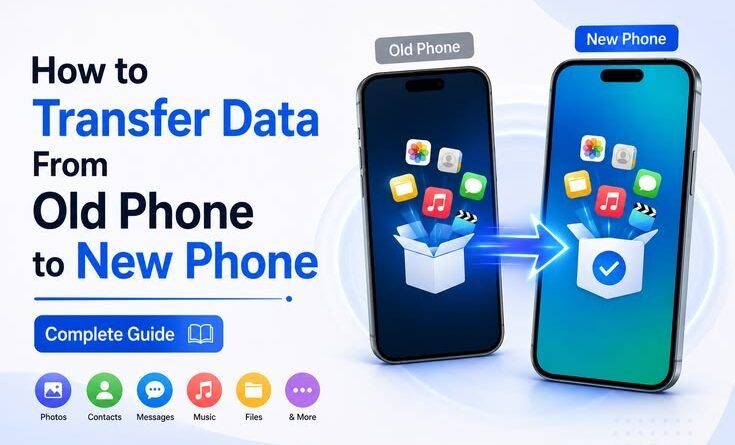
How to Transfer Data From Old Phone to New Phone — Complete Guide
How to Transfer Data From Old Phone to New Phone — Complete Guide
Last month I got a new phone. And for about 48 hours, I was completely useless.
Not because the phone was complicated — it was actually great. But because I’d underestimated how much of my life was sitting on that old device. Five years of WhatsApp chats. Photos from three countries. Notes I never backed up. Passwords I definitely didn’t remember. A playlist I’d spent years building.
I thought the transfer would take twenty minutes. It took the better part of a day, two failed attempts, and one mild panic attack when I thought I’d lost my entire camera roll.
The good news? I figured it out. And now I know exactly what to do — and what not to do — when switching phones. Whether you’re going from Android to Android, iPhone to iPhone, or crossing the Android-iOS divide, this guide covers the whole thing.
First, a Rule I Wish Someone Had Told Me
Before you do anything else — before you even open the new phone’s box — back up your old phone.
I know that sounds obvious. But I didn’t do it properly. I assumed Google was auto-syncing everything. It was syncing contacts and calendar. It was not syncing my WhatsApp media, my offline downloads, or my notes app (which used local storage, not cloud). I found this out after the fact.
So step zero: go to Settings → Backup on your Android, or Settings → [your name] → iCloud → iCloud Backup on iPhone, and manually trigger a fresh backup right now. Wait for it to complete. Then proceed.
Android to Android: The Easiest Transfer You’ll Ever Do
If both phones run Android, you’re in luck. Google has made this genuinely painless — as long as both phones are connected to the same Wi-Fi and you have a USB-C cable handy.
Method 1 — Google’s Built-In Setup Transfer (Recommended)
This is the cleanest method and works best when the new phone is fresh out of the box and hasn’t been set up yet.
Step 1: Power on your new Android phone and start the initial setup.
Step 2: When it asks “Copy apps & data?”, tap “Next” instead of setting up as new.
Step 3: It will ask if you have a cable. If you do — use it. A wired connection is faster and more reliable than wireless here. Plug your old phone into your new phone using a USB-C to USB-C cable (or the adapter that sometimes comes in the box).
Step 4: On your old phone, you’ll get a prompt asking if you want to copy data. Accept it.
Step 5: Choose what to transfer — apps, photos, contacts, messages, call history, settings. You can pick and choose or take everything.
Step 6: Leave both phones connected and let it run. Depending on how much data you have, this can take anywhere from 5 minutes to 45 minutes.
What transfers: contacts, apps, photos, videos, messages (SMS), call logs, Wi-Fi passwords, display settings, wallpaper.
What doesn’t always transfer: in-app data for some apps (game progress, for instance), authentication tokens (you’ll need to log back into most apps), downloaded offline content.
Method 2 — Google Account Sync (For When You’ve Already Set Up the New Phone)
If you already powered on and skipped the transfer step, don’t panic.
Sign in to the same Google account on your new phone. Your contacts, calendar, Gmail, Chrome bookmarks, and Drive files will sync automatically. For photos, Google Photos will restore everything if you had backup enabled. For apps, go to Play Store → tap your profile → Manage apps & device → and you can reinstall your previous apps in bulk.
This method is a bit more manual but works fine for most things.
iPhone to iPhone: iCloud Makes It Mostly Seamless
Apple’s ecosystem is tightly integrated, and transferring between iPhones is usually a smooth experience — provided your iCloud backup is fresh and you have enough iCloud storage.
Method 1 — Quick Start (The Best Way)
Quick Start is Apple’s direct phone-to-phone transfer feature. No cables needed, though it’s faster with one.
Step 1: Keep your old iPhone nearby and power on the new one.
Step 2: A “Quick Start” screen will appear on your old phone automatically. It shows an animation — hold your old phone’s camera over it to authenticate.
Step 3: Choose “Transfer from iPhone” (rather than restoring from iCloud). This transfers directly, device to device.
Step 4: Both phones need to stay near each other, plugged in, and on Wi-Fi. Don’t walk away — if the connection drops, it restarts.
Step 5: Your new phone will reboot once done and look almost identical to your old one. Apps, settings, layout, even your wallpaper.
The transfer is encrypted end-to-end, which is nice.
Method 2 — Restore from iCloud Backup
If Quick Start isn’t an option, you can restore from an iCloud backup during the new phone’s setup. Sign in with your Apple ID, choose “Restore from iCloud Backup,” and pick the most recent backup. The phone will download and install everything, which takes longer but works reliably.
One thing to watch: If you’re upgrading to a new iOS version as part of the transfer, give the apps a bit of time to finish downloading in the background after setup. The icons will all be there, but the actual app data reinstalls progressively.
Android to iPhone: The Cross-Platform Switch
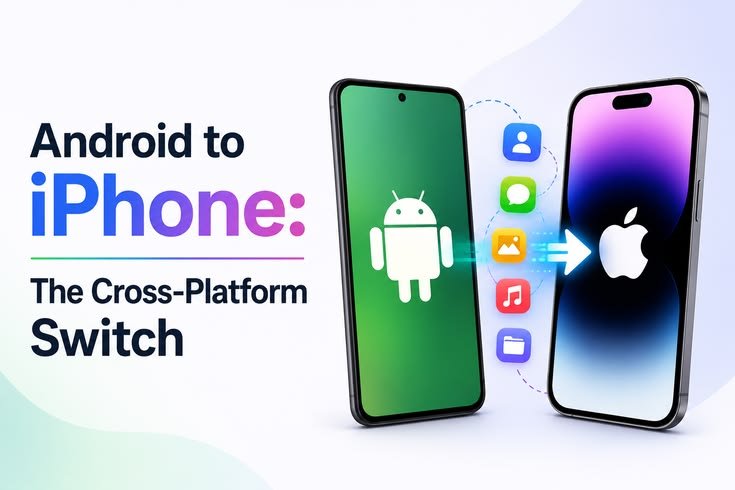
This one takes a bit more effort. Going from Android to iPhone, Apple actually made a dedicated app for it — Move to iOS. It’s genuinely decent, though with some limitations.
Using Move to iOS:
Step 1: During iPhone setup, when asked how you want to transfer data, tap “Move Data from Android.”
Step 2: On your Android phone, download the Move to iOS app from the Play Store.
Step 3: Open it, agree to the terms, and tap Continue. Your Android will display a code.
Step 4: Enter that code on your iPhone. The two phones create a temporary Wi-Fi network between them.
Step 5: Select what you want to transfer — contacts, photos, videos, messages, mail accounts, calendars, web bookmarks.
Step 6: Keep both phones on, screens unlocked, and don’t use Wi-Fi for anything else during the transfer.
What transfers well: contacts, photos, videos, messages, bookmarks, email account settings.
What doesn’t transfer: apps (you’ll need to find iPhone equivalents), paid app purchases, WhatsApp data (more on that below), music from streaming apps.
The process is slower than same-ecosystem transfers and sometimes needs a retry or two, but it gets the important stuff across.
iPhone to Android: Google’s Answer
Google has a “Switch to Android” app for iOS users making the jump. It works similarly — available on the App Store, handles contacts, photos, videos, messages, and calendar events.
For a long time, this app was clunky. It’s improved significantly. If you’re switching to a Samsung specifically, Samsung Smart Switch is worth trying — it handles both the data transfer and helps you find Android equivalents for iPhone apps.
WhatsApp: The One Everyone Panics About
WhatsApp data doesn’t transfer automatically with any of the above methods — except within the same ecosystem using Google Drive or iCloud backup.
Android to Android (via Google Drive): On old phone → WhatsApp → Settings → Chats → Chat Backup → Back up to Google Drive. On new phone, install WhatsApp, verify the same number, and restore from Google Drive when prompted.
iPhone to iPhone (via iCloud): Settings → Chats → Chat Backup → Back Up Now. On new phone, same process — restore from iCloud.
Android to iPhone (or vice versa): WhatsApp added an official cross-platform transfer feature. On Android, go to Settings → Chats → Move Chats to iPhone. On iPhone, during setup, choose “Move Data from Android” — there’s now a WhatsApp option within that flow. It requires a cable and the Move to iOS process, but it actually works.
Contacts: Don’t Rely on Just One Method
I’ve seen people lose contacts because they only had them saved on their SIM or locally on the phone — not synced to Google or iCloud. Before switching:
On Android: Settings → Accounts → Google → Sync Contacts. On iPhone: Settings → [your name] → iCloud → toggle Contacts on.
Once synced, your contacts live in the cloud and show up automatically on any device you log into.
Photos: The Safest Approach
For Android users, Google Photos with backup enabled is the most reliable safety net. Enable it, let it fully back up (check the backup status — it shouldn’t say “waiting for Wi-Fi” with 4,000 photos pending), and your photos are safe regardless of what happens to your phone.
For iPhone users, iCloud Photos does the same. Just make sure you have enough iCloud storage — the free 5GB fills up faster than you’d expect.
If you want a local backup too — which I’d always recommend — plug your phone into your laptop and copy the DCIM folder. Old-school, but bulletproof.
Common Mistakes That Catch People Off Guard
Not checking the backup before starting. A backup from three months ago means three months of memories potentially gone. Always trigger a fresh backup the night before you switch.
Running the transfer over mobile data. This will drain your data plan and take forever. Both phones need to be on Wi-Fi, and preferably plugged in to power.
Setting up the new phone before transferring. Once you complete the initial setup and skip the “copy data” step on Android, you lose the cleanest transfer window. You can still recover everything, but it’s more manual.
Forgetting two-factor authentication apps. If you use Google Authenticator or a similar app, you need to move those accounts manually before wiping your old phone. Otherwise you’ll be locked out of every service that uses it. Most 2FA apps now have a migration feature — use it.
Switching off the old phone too quickly. Keep the old phone around for a week if possible. Not powered off — actually keep it accessible. There’s almost always something you forgot about that you’ll need to fish out.
The Thing Nobody Talks About: Log Back Into Everything
Whichever method you use, you will have to log back into most apps. Banks, streaming services, email clients, food delivery apps — they all require re-authentication on a new device. This is a security feature, not a bug.
Set aside 20-30 minutes just for this on your first day with the new phone. Have your email open on another device to grab verification codes. And if you’ve forgotten a password somewhere (which you will), now’s actually a good time to move those into a password manager like Bitwarden or 1Password so it doesn’t happen again.
Which Method Should You Actually Use?
If both phones are Android and the new one hasn’t been set up yet — use the wired cable transfer during initial setup. It’s the most complete.
If both phones are iPhones — Quick Start is brilliant. Use it.
If you’re switching ecosystems — Move to iOS (Android → iPhone) or Switch to Android/Samsung Smart Switch (iPhone → Android) are your best bets, followed by manual syncing of the things they miss.
And if all else fails — Google account + Google Photos + manual app reinstall gets you 90% of the way there on Android. Apple ID + iCloud does the same for iPhone.
Switching phones used to stress me out. Now it mostly doesn’t — because I’ve learned to treat the backup as seriously as the transfer itself. If your old phone is backed up properly, you’re never really “losing” anything. You’re just moving it.
Take your time, keep the old phone around for a few days, and don’t rush through the setup. The new phone will feel like yours soon enough.