What to Do When Your Phone Gets Slow — Simple Fixes That Work
My phone once took a full 47 seconds to open WhatsApp. I remember it clearly because I was standing outside a restaurant, trying to show someone a screenshot, and we just stood there watching the loading spinner do its thing. That was the moment I knew something had to change.
If you’ve been there — tapping an app twice because you thought it didn’t register, waiting for your camera to load while the moment you wanted to capture walks away — this one’s for you. I’ve been fixing slow phones for years, both my own and for friends who hand their devices to me like I’m some kind of phone doctor. Here’s everything that actually works.
First, Understand Why It’s Happening
Before throwing fixes at the wall, it helps to know what’s actually choking your phone. In most cases, a slow phone comes down to three things: storage running low, RAM getting overwhelmed, or software that hasn’t been maintained properly. Occasionally it’s a dying battery (yes, that’s a real thing — more on that in a minute).
Old hardware plays a role too, but honestly, I’ve seen budget phones from 2021 run smoother than flagship phones from 2023 just because the cheaper one was better maintained. The hardware rarely tells the whole story.
Step 1: Check Your Storage — This Is Almost Always the Problem
When your phone’s internal storage hits around 85-90% full, performance tanks. The system needs breathing room to write temporary files, cache data, and juggle tasks. When there’s no space, everything slows down.
Go to Settings → Storage on Android or Settings → General → iPhone Storage on iOS.
If you’re sitting above 80% used, that’s your culprit. Here’s what I clear first:
- Photos and videos. These are almost always the biggest offenders. I use Google Photos on Android to back everything up, then delete the local copies. On iPhone, iCloud does the same job. After doing this on my old Redmi Note 9, I recovered 14GB in about ten minutes.
- Downloaded files. Check your Downloads folder. You’d be shocked what’s sitting in there — PDFs you opened once in 2022, APKs you never installed, voice notes from forgotten group chats.
- App cache. On Android, go to Settings → Apps, pick the heavy hitters (Instagram, YouTube, Chrome), and hit “Clear Cache.” This isn’t the same as clearing data — you won’t lose your login or settings, just the temporary junk the app has been hoarding.
iPhone doesn’t let you manually clear individual app caches the same way, but offloading unused apps (Settings → General → iPhone Storage → Offload Unused Apps) achieves something similar.
Step 2: Look at What’s Running in the Background
I used to think background apps were always bad and swipe-closed everything obsessively. Turns out that’s actually a myth — constantly force-closing apps can make things slower because the phone has to reload them from scratch each time.
The real issue is apps that actively run in the background, eating up RAM and battery.
On Android, go to Settings → Battery → Battery Usage and look at what’s consuming the most. If a social media app is using 30% of your battery while you haven’t touched it in hours, it’s misbehaving. Restrict its background activity: Settings → Apps → [App Name] → Battery → Restricted.
On iPhone, go to Settings → General → Background App Refresh and turn it off for apps that don’t genuinely need it. I keep it on for Maps and Podcasts, but Instagram doesn’t need to refresh in the background. It can wait until I open it.
Step 3: The Battery-Performance Connection Nobody Talks About Enough
Apple was famously caught throttling processor speed on older iPhones to protect degraded batteries. They took a lot of heat for it, but the logic wasn’t completely wrong — a struggling battery can cause unpredictable voltage spikes that the phone compensates for by slowing down the chip.
Android does something similar, though less openly.
Check your battery health:
- iPhone: Settings → Battery → Battery Health & Charging. Anything below 80% and you’ll start noticing performance issues.
- Android: This varies by manufacturer. Samsung has it under Settings → Battery and Device Care → Diagnostics. For other brands, apps like AccuBattery can give you a rough estimate.
If your battery health is poor, replacing it is the single most effective hardware fix. It’s usually not expensive — often between ₹800–₹2500 at a local repair shop, or through an official service center. I did this on an iPhone 7 that everyone had written off as “just old,” and it felt like a new phone afterward. No exaggeration.
Step 4: Software Housekeeping — Don’t Skip This
Updates get a bad reputation because they occasionally introduce bugs. But running outdated software is like ignoring a slow leak — it gets worse over time.
Keep your OS updated. Keep your apps updated. Most performance optimizations and bug fixes happen silently in the background of these updates.
Also: if you haven’t restarted your phone in more than a week, do it right now. A proper restart clears RAM, flushes temporary files, and lets background services reset. It sounds basic because it is basic, but it genuinely works. A full restart — not just locking the screen — makes a noticeable difference for most people.
Step 5: Animated Wallpapers and Live Widgets Are Killing Your Performance
This one surprises people. That beautiful live wallpaper? It’s running constantly, pulling GPU resources every second your screen is on. Those stacked widgets on your home screen? Each one is a small process that needs to refresh periodically.
I switched from a live wallpaper to a static one on my Pixel and clocked a measurable improvement in app launch times. The home screen felt snappier just from that one change.
If your phone is struggling, strip the home screen back. Static wallpaper, fewer widgets, only the apps you actually use within reach. You can always restore the fancier setup once things are running well again.
Step 6: The Nuclear Option — Factory Reset
I put this last because it’s a last resort, but it deserves a proper mention. After years of app installs, uninstalls, system updates layering on top of each other, and various settings changes, some phones develop a kind of digital clutter that no individual fix can fully clean up.
A factory reset wipes all of that and returns the phone to how it behaved on day one.
Before doing this: back up everything. Use Google backup, iCloud, or manually copy your photos and important files. Write down any 2FA codes or passwords stored locally.
After the reset, reinstall only what you actually use. This is a good opportunity to break the habit of keeping 200 apps you haven’t opened since the year you downloaded them.
I’ve done factory resets on phones that seemed unsalvageable, and in most cases they came back performing noticeably better.
Mistakes I See People Make Constantly

- Buying a “phone cleaner” app from the Play Store. Almost all of these are useless or actively harmful. Some are borderline adware. Android and iOS both have built-in tools that do the same job, or better.
- Clearing data instead of cache. “Clear Cache” removes temporary files. “Clear Data” removes your saved settings, logins, and app data. These are different buttons, and hitting the wrong one has caused real stress.
- Ignoring storage until the phone stops working. Don’t wait until your phone can’t take a photo because it’s full. Set a reminder to check storage once a month.
- Assuming the phone is just “too old.” Most phones have another year or two of usable life left if they’re properly maintained. Software, not hardware, is the problem the majority of the time.
A Quick Note on Apps Specifically Made to Slow Things Down
Some apps are just badly written. They’re memory-hungry, they don’t release resources properly, and they run background processes constantly. Facebook’s main Android app has a long-standing reputation for this — many people (myself included) switched to using Facebook through Chrome instead of the app and noticed an immediate improvement.
If a specific app seems to correlate with your phone slowing down, uninstall it and use the mobile website instead. This works for Facebook, Snapchat, LinkedIn, and a handful of other heavy apps.
Where to Go From Here
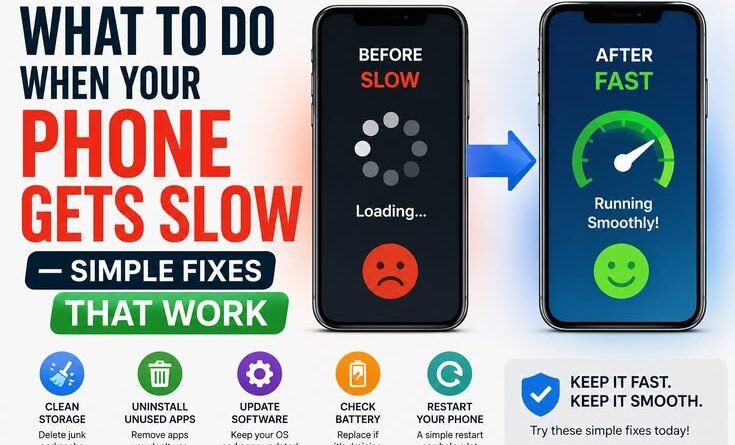
Start with storage. That alone fixes the problem for most people. If it doesn’t, work through the list — background app activity, battery health, a fresh restart, stripping back the home screen.
Give each fix a day or two before moving to the next one. Phones take a little time to settle after major changes, especially storage cleanups.
And if you try everything and the phone still crawls? That’s when you have a real conversation about whether the hardware has genuinely reached its limit — or whether it’s time for a battery replacement that costs less than a dinner out and buys you another year or two.
Slow phones are almost always fixable. They just need someone to actually look at them properly.