
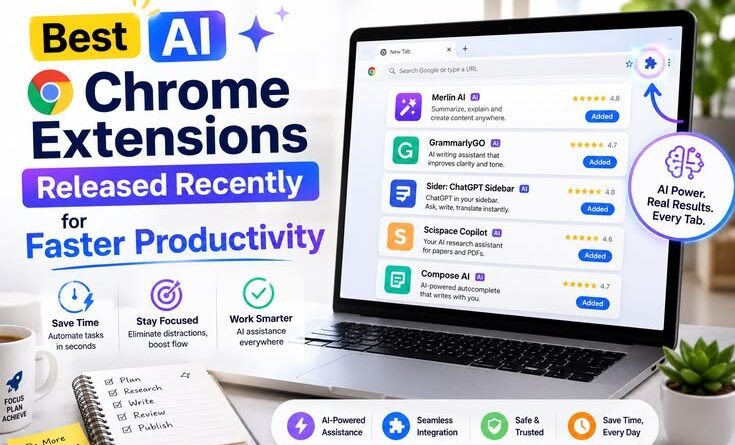
Best AI Chrome Extensions Released Recently for Faster Productivity
By a tech blogger who has actually used these tools — and made some dumb mistakes along the way.
Last month, I nearly missed a client deadline because I spent three hours — three hours — going back and forth between tabs, summarizing research articles, rewriting emails, and manually logging data into a spreadsheet. Three hours of grunt work on tasks that, looking back, I now do in about 25 minutes.
The turning point? I finally stopped dismissing AI Chrome extensions as gimmicks and actually started using them properly.
I’d installed a few before. Tried them once, got confused, and deleted them. Classic mistake. But after that deadline near-miss, I sat down for a weekend, tested about a dozen extensions back to back, and figured out which ones were genuinely worth keeping. The ones that changed my workflow are all in this list.
No fluff. No “revolutionary tools” hype. Just what actually worked — and what didn’t.
Why Chrome Extensions Beat Switching Apps
Before diving in, here’s something I wish I’d understood earlier.
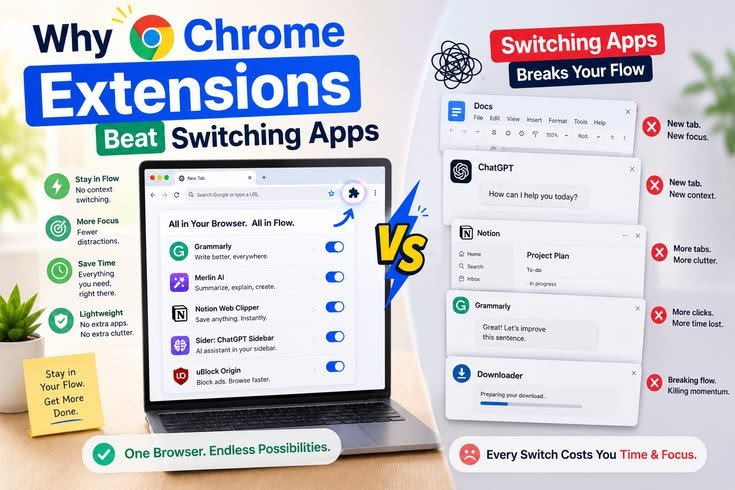
The reason AI Chrome extensions are so effective isn’t because the AI inside them is magical. It’s because they work where you already are. You’re already in Gmail, Google Docs, LinkedIn, YouTube — you’re already in the browser for 6–8 hours a day. An AI that lives inside that environment saves you from the tab-switching tax that quietly kills your focus.
Every time you copy something, paste it into ChatGPT, wait for a response, then copy it back — that’s friction. It’s small friction, but it compounds. Good extensions eliminate it entirely.
Okay, let’s get into the actual tools.
1. Perplexity AI — The Research Sidekick You Didn’t Know You Needed
I used to think Perplexity was just a “ChatGPT with citations.” That’s underselling it by a lot.
The Chrome extension puts a sidebar directly in your browser. While you’re reading an article, you can highlight a claim and ask Perplexity to verify it, expand on it, or find related sources — without leaving the page. It cites everything too, so you’re not just getting AI-generated guesses.
Real scenario: I was writing a piece on sustainable packaging trends. Old me would’ve opened 10 browser tabs, tried to read all of them, and ended up with 40 browser tabs. With Perplexity, I typed my research question into the sidebar and got a structured answer with linked sources in under a minute.
The free tier is genuinely usable. You don’t need to pay on day one.
Watch out for: It can sometimes oversimplify complex topics. Always click through to the cited sources for anything important.
2. Sider — The All-in-One AI Panel That Doesn’t Get in Your Way
Sider is what you install when you want one AI assistant that handles everything — summarization, translation, writing, Q&A — without installing five separate extensions.
It sits as a panel on the right side of your browser. You can ask it to summarize any article you’re reading, rewrite a paragraph in a different tone, or compare two ideas from different tabs. The newer version (Sider 5.0) added a Deep Research agent that actually browses the web on your behalf to gather information on a topic.
What I like most is that it pulls from multiple AI models — ChatGPT, Claude, Gemini — so you can see responses from different models side by side. That’s genuinely useful when you want a second opinion on something.
Best use case: Summarizing long reports without printing or downloading them. I use it on research PDFs all the time.
Honest caveat: It can feel a bit overwhelming when you first install it. Ignore half the features initially. Just use the “summarize this page” function for the first week until it becomes habit.
3. Grammarly — Yes, It Still Deserves a Spot. Here’s Why.
I know, I know. Everyone knows Grammarly. But the recent updates have genuinely changed what it can do, and it would be wrong to leave it off this list.
The old Grammarly caught typos. The new Grammarly reads your tone and flags when you sound passive-aggressive, too formal, too casual, or unclear — depending on the context. That’s a different product entirely.
I’ve caught myself writing “As I mentioned previously…” in a client email — which comes off as snippy — and Grammarly quietly suggested “To recap what we discussed…” instead. That’s the kind of thing no spell-checker ever caught before.
It works across Gmail, LinkedIn, Google Docs, Notion, and basically anywhere you type in a browser. That cross-platform consistency is where it earns its keep.
Who needs this most: Anyone who sends a lot of emails or writes in a second language. Even native speakers benefit from the tone detection feature.
4. Fireflies.ai — Meeting Notes That Actually Write Themselves
Here’s one that changed how I handle calls more than anything else on this list.
Fireflies.ai integrates with Google Meet, Zoom, and Teams. Once you connect it, it joins your meetings as a bot, records them, transcribes them, and then generates a summary with action items and decisions highlighted.
The first time I used it, I thought I’d done something wrong because the summary was too good. It had all the key points, the assigned tasks, and even timestamped moments in the recording. I shared it with a colleague and her first reaction was “wait, did you write this during the meeting?”
Nope. I was actually paying attention to the meeting for the first time in months.
Important note: Always let meeting participants know a bot is recording. Most people are fine with it, but you need to tell them. Skipping this step is both rude and potentially a legal issue depending on where you are.
Limitation: The free plan limits the number of meeting minutes per month. Heavy users will need to upgrade.
5. Compose AI — Email on Autopilot
If you write a lot of repetitive emails, Compose AI will feel like finding money in an old jacket.
It works as an autocomplete layer on top of Gmail and other web-based email platforms. As you start typing, it suggests completions. More usefully, you can type a few bullet points describing what you want to say, and it drafts the whole email for you.
I have a shortcut set up — //decline — that generates a polite rejection email whenever I type it. I just edit the name and one or two specifics. What used to take me 4–5 minutes per email now takes 30 seconds.
Where people go wrong: They let the AI write the whole email without reading it carefully. The tone can sometimes be slightly off, especially for sensitive conversations. Always read what it generates before hitting send.
6. HARPA AI — Web Automation Without Writing Code
This one is for people who find themselves doing the same browser-based tasks repeatedly and thinking “there has to be a better way.”
HARPA blends AI with browser automation. You can set it up to monitor a product page for price changes, track updates on a competitor’s site, or extract structured data from web pages and export it to a spreadsheet. It’s like having a lightweight version of Zapier that lives in your browser.
I use it to track when specific job listings update and to monitor pricing changes on tools I’m evaluating. Stuff I used to check manually every few days.
Learning curve alert: HARPA takes more setup than the others on this list. It’s worth it, but budget 30–45 minutes to actually read through the onboarding and set up your first automation before giving up on it.
7. Magical — The Clipboard That Thinks
Magical is the most underrated extension in this entire list, and I say that as someone who almost didn’t install it because the name sounded too cute.
It lets you create text shortcuts that expand into full paragraphs, templates, or even dynamically pull information from the page you’re on. You type //address and it fills in your full address. You type //proposal and a 300-word project proposal template appears. You can even set it up to pull a contact’s name from a LinkedIn profile and drop it into a message automatically.
The time savings are hard to explain until you use it. My personal estimate: I save about 20–25 minutes a day just from text expansion alone.
Good for: Anyone in sales, recruiting, customer support, or content — basically anyone who sends similar messages repeatedly.
8. Scribe — Turn Any Process Into a Guide Instantly
If you’ve ever had to write step-by-step instructions for a colleague and thought “there has to be a faster way,” Scribe is the answer.
You hit record, walk through a process in your browser (like setting up a tool, filling out a form, or navigating a software platform), and Scribe captures every click and keystroke. It then automatically generates a documented guide complete with annotated screenshots.
The guides it creates are genuinely clean and readable. I’ve used it to document onboarding processes, tool tutorials, and client-facing how-to guides — work that used to take me an hour now takes five minutes.
Best use case: Small teams and freelancers who need to document their workflows for new hires or clients.
Common Mistakes People Make With AI Extensions
After testing all of these, I noticed some patterns in how people mess this up — including myself.
Installing too many at once. It’s tempting to install all eight of these today. Don’t. Pick two that solve your most painful problems and use them for two weeks before adding more. Otherwise, you’ll feel overwhelmed and uninstall everything.
Not reviewing AI outputs before sending. Every one of these tools can generate text that sounds almost right but is slightly off in context or tone. Always read what the AI produces before sending it to another human.
Ignoring privacy permissions. Some of these extensions ask for broad browser access. That’s sometimes necessary for them to work, but you should know what you’re granting. Read the permissions screen before installing anything. For truly sensitive work, check whether the extension’s privacy policy covers your data appropriately.
Using AI as a shortcut for thinking. These tools are best at removing friction from tasks you already understand. If you use them to avoid thinking about problems you don’t understand, the output will be confidently wrong.
How to Set Up Your First AI Extension in Under 5 Minutes
If you’ve never installed a Chrome extension before, here’s the quick version:
- Open Chrome and click the three-dot menu in the top right corner.
- Go to Extensions → Visit Chrome Web Store.
- Search for the extension you want (e.g., “Perplexity AI”).
- Click Add to Chrome and confirm.
- The extension icon appears in your toolbar (the puzzle-piece icon). Pin it there for easy access.
That’s genuinely it. Most of these extensions take less than 60 seconds to install and have a free tier to try before committing.
Final Thoughts
The thing nobody tells you about AI productivity tools is that the biggest gains don’t come from the fanciest features — they come from consistently using simple features that remove daily friction.
Perplexity saves you tab-switching. Grammarly saves you re-reading. Compose AI saves you rewriting. Fireflies saves you the 20 minutes of note cleanup after every call. None of these feel dramatic in isolation. Together, across a week, they add up to hours.
Start with one extension this week. Use it properly. Then add another.
That’s how you actually get faster — not by installing everything at once and hoping something sticks.
Have a favourite AI Chrome extension that didn’t make this list? Drop it in the comments — I’m always looking for something new to test.




Pingback: Why AI Startups Like Anuma Are Trying to Build a Smarter Alternative to Traditional Chatbots
Pingback: How AI Is Helping Creators Make Videos, Images, and Music Faster Than Ever – MSR Technical
Pingback: How Smart Devices Are Starting to Understand Human Emotions – MSR Technical