
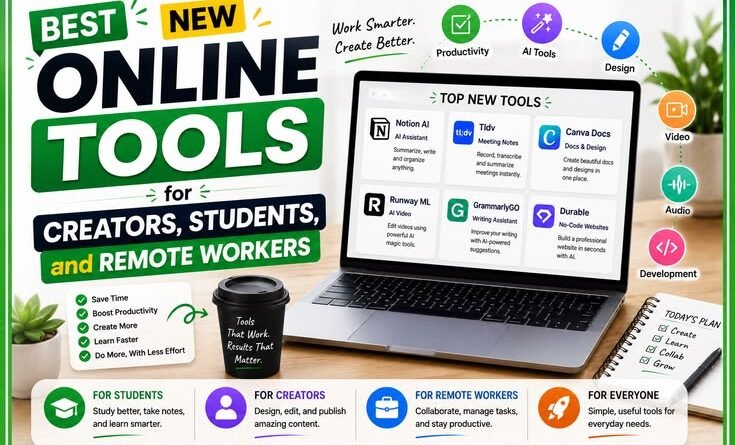
Best New Online Tools for Creators, Students, and Remote Workers
No fluff, no filler — just the stuff that actually changed how I work.
A few months ago I missed a client deadline — not because I was lazy or disorganized, but because I was drowning in twelve browser tabs, three different note apps, and a to-do list that had its own to-do list. Sound familiar?
I spent the next few weeks on a slightly obsessive mission: testing every new tool I could find that promised to fix the chaos. Most were forgettable. A handful genuinely changed how I work. This article is about those.
Whether you’re a freelancer juggling multiple clients, a student trying to survive finals season, or a remote worker who’s perpetually fighting the “I’ll organize it later” spiral — there’s something here for you.
First, a Word About Tool Overload
The biggest mistake I made early on was downloading every shiny app that crossed my feed. I had Notion, Obsidian, Roam Research, and Bear — all at the same time — for note-taking. I spent more time migrating notes between apps than actually writing them.
Lesson learned: A new tool only earns its place if it solves a specific, real problem you already have. Don’t adopt it hoping a problem will appear.
With that filter in mind, here’s what actually made the cut.
For Creators: Tools That Respect Your Time
Kling AI / Runway Gen-4 (Freemium)
I was skeptical about AI video tools for the longest time — the early ones produced that unmistakable “melting fingers” look that screamed AI from a mile away. But the generation that’s dropped in 2025–2026 is something else entirely.
Runway Gen-4 and Kling AI can now take a single reference image (or even a rough description) and produce short video clips that hold up for social content, explainers, and B-roll. I used Kling to create a 6-second product demo clip for a client who couldn’t afford a videographer. It took 20 minutes and four attempts. The client thought it was shot on location.
Practical tip: Start with a very specific, visual prompt. “A clay teapot on a wooden table, sunlight coming from the left, steam rising slowly” works far better than “a cozy tea scene.” The more concrete, the better the output.
Descript (Freemium)
If you make any kind of audio or video content — podcasts, YouTube videos, course recordings — Descript is the tool that makes editing feel like editing a Google Doc. You correct the transcript, and it edits the audio/video automatically.
The “filler word removal” feature alone saves me about 40 minutes per episode. It finds every “um,” “uh,” and “you know” and lets you delete them in bulk. I used to do this manually, frame by frame, in Premiere. Now I do it in minutes.
The unexpected win: overdub. If you mispronounce something or want to change a sentence after recording, you can type the correction and your AI voice clone reads it back — in your voice. It’s slightly unsettling and incredibly useful.
Adobe Firefly (in Express) (Freemium)
Adobe’s Firefly integration inside Adobe Express has quietly become the fastest way to go from an idea to a shareable graphic. The “generative fill” lets you drop an object into any background, remove things, and extend images. For someone who used to wait on a designer for three days to get a banner image, this is a genuine unlock.
The thing I appreciate most: it’s trained on licensed content, so you’re not playing IP roulette when you use it for commercial work.
For Students: Getting More Out of Every Hour

NotebookLM (Free)
Google’s NotebookLM has become something I genuinely wish I’d had during university. You upload your PDFs, lecture notes, or research papers, and it becomes an AI tutor that only draws from those specific sources — not the whole internet.
What this means practically: you can ask “explain the main argument of Chapter 3 in simple terms” and it will do it accurately, with citations from your actual document. No hallucinations from the broader web.
Here’s how to get the most out of it:
- Upload your lecture slides and reading list PDFs into a new notebook.
- Ask it to generate a study guide covering key concepts.
- Use the “Audio Overview” feature — it generates a two-host podcast explaining your material. Sounds gimmicky, it’s actually great for commutes.
- Ask specific exam-prep questions: “What are three potential exam questions from this chapter?”
Student tip: Create a separate NotebookLM notebook for each subject. It keeps sources clean and the AI’s answers more focused.
Anki + AnkiConnect (Free)
This one isn’t new. But the way people use it is. Anki is a spaced-repetition flashcard tool — it shows you cards just before you’re about to forget them. The catch was always the time spent making cards.
What’s changed: there are now browser extensions and tools that can auto-generate Anki flashcards from highlighted text, lecture notes, or even a NotebookLM summary. The bottleneck is gone. A student I know generates her entire week’s flashcard set in about ten minutes by copying key paragraphs from her notes into a card-generator tool, then importing directly into Anki.
Consensus (Freemium)
Consensus is a search engine specifically for peer-reviewed research. You ask a scientific question and it pulls actual study findings — with the paper, the sample size, and the conclusion all visible. For anyone doing a literature review or trying to back up a claim with real data, this cuts hours of Google Scholar searching.
I used it while writing a health article to quickly verify whether a claim about sleep quality had actual research behind it. Found three relevant studies in four minutes. That used to take a half-afternoon.
For Remote Workers: The Collaboration Layer
Loom + AI Summaries (Freemium)
If your team spans time zones, Loom has become the async meeting killer — in the best possible way. Record a quick screen walkthrough, share the link, and your teammate watches it on their schedule. What’s new: Loom now auto-generates a summary and action items from your video.
The result is that a five-minute Loom can replace a 30-minute Zoom. And honestly, a well-made Loom with a clear agenda replaces even written emails that require back-and-forth clarification.
Common mistake: People record Looms without a clear point. Treat it like a presentation — know your conclusion before you start recording. “I want them to understand X and do Y” should be your frame.
Linear (Freemium)
Linear started as a project management tool for engineering teams, and if you’ve never used it, the speed is the first thing you notice. Switching between views, creating tasks, updating statuses — everything is keyboard-first and almost instantaneous.
But it’s spread beyond engineering. I know a team of three content marketers using it to manage their editorial calendar, and a solo freelance designer who uses it to track client project stages. The opinionated structure (cycles, priorities, no infinite nesting) actually reduces the “organizing instead of working” trap.
Reclaim.ai (Freemium)
This one felt like magic the first week I used it. Reclaim.ai connects to your calendar and automatically schedules your recurring tasks (deep work, exercise, focus blocks) around your meetings — and reschedules them if a meeting gets moved.
The problem it solves: most remote workers have full calendars but zero protected time for actual work. Reclaim treats your tasks as appointments that deserve calendar space, not afterthoughts you’ll get to “when there’s a gap.”
The Tools That Didn’t Make the List (And Why)
Honesty matters more than a comprehensive roundup, so here’s what I tried and ultimately set aside:
Notion AI — Powerful, but adds real cost to an already-paid tool. The base AI features feel incremental rather than transformative if you’re not deep in the Notion ecosystem.
Gamma.app — Generates beautiful presentations from a prompt. The output looks great until your audience realizes it’s a template they’ve seen five times. Good for drafts, not finals.
Various “AI writer” tools — None replaced the thinking that makes writing worth reading. Good for outlines and rough drafts. Dangerous if you publish without heavy editing.
A Quick Framework for Trying New Tools
Before you open twelve tabs and start signing up for trials, run this five-minute sanity check:
- Name the specific task that currently frustrates you. (“I spend too long editing podcast audio” is specific. “I want to be more productive” is not.)
- Search for tools that target exactly that task — not general productivity platforms.
- Use the free tier for one real project before paying for anything.
- After two weeks, ask: did I actually use this more than once? If no, uninstall.
- If yes, check if the paid plan actually unlocks something you need — not just something nice to have.
A Note About AI Tools Specifically
Most of the tools in this article have some AI layer in them. And I want to be straight with you: they’re genuinely useful, but they all have failure modes.
AI video still struggles with consistent faces across clips. AI transcription mishears names and jargon. AI-generated study notes can oversimplify nuanced arguments. None of these are deal-breakers — they’re just reasons to stay in the loop rather than fully handing things over.
The framing that works for me: Treat these tools like a capable intern. Fast, often impressive, occasionally wrong in ways that require you to catch them. Supervise, don’t abdicate.
Where to Find New Tools Without Drowning in Noise
The tool discovery problem is real — there are thousands of new launches every month. A few sources I’ve found actually trustworthy:
Product Hunt (check weekly, not daily, or it becomes its own distraction). “There’s an AI for That” — a searchable database organized by task type. Twitter/X searches like “replaced [tool] with [task]” — real people sharing what actually worked. And honestly, talking to other people in your field. The tools that stick tend to spread through communities, not press releases.
The best tool you can use is still your own judgment about what problem actually needs solving. Everything on this list earns its place by doing one thing noticeably better than what came before it — not by being the newest thing with the most features.
If even one of these changes how a workday goes for you, the list did its job.


Pingback: How Smart Glasses From Meta and Apple Could Change Everyday Digital Life
Pingback: How Microsoft Is Bringing AI Features Into Windows and Office Apps Faster Than Ever