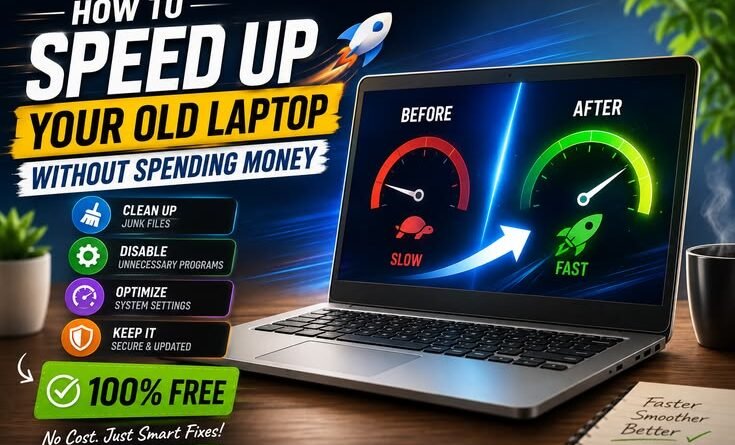
How to Speed Up Your Old Laptop Without Spending Money
Three years ago, I almost bought a new laptop out of frustration. My old Dell Inspiron was crawling — apps took forever to open, the fan never stopped screaming, and Chrome alone could kill it. Then I spent a weekend doing everything on this list. I didn’t spend a single rupee. The thing runs like a different machine now.
Let me paint you a picture. It’s 11 PM, you’ve got a deadline, and your laptop takes four minutes just to open a Word document. You’ve got 47 Chrome tabs because you “might need those later,” your fan is doing its best impression of a helicopter, and your patience is at zero. That was me, every single day.
I kept telling myself — “okay, next month I’ll buy a new one.” But next month came and went, and the budget never agreed. So instead, I did what any stubborn person does: I went down a rabbit hole and tried to fix it myself. What I found actually surprised me. The laptop wasn’t broken. It was just buried alive under a pile of junk it had quietly accumulated over the years.
Here’s everything that actually worked — no paid software, no new hardware, just time and some patience.
First, Understand Why Your Laptop Feels Slow
Before you start clicking random things, it helps to know what’s actually happening. Most older laptops slow down for a handful of predictable reasons: too many programs running in the background, a startup sequence that launches 30 apps before you’ve even touched the keyboard, a hard drive that’s nearly full, or Windows slowly accumulating junk over months of updates and installs.
None of these problems require money to fix. They just require knowing where to look.
Step 1: Kill the Startup Programs Bleeding Your RAM
This was the single biggest improvement I noticed. When Windows boots up, it doesn’t just load itself — it also dutifully launches every app that has ever quietly added itself to startup. Spotify. Discord. Adobe updater. OneDrive. Teams. Steam. Each one takes a slice of your RAM and CPU before you’ve even logged in.
How to do it:
- Press Ctrl + Shift + Esc to open Task Manager.
- Click the “Startup” tab at the top.
- You’ll see a list of apps and their “Startup impact” — sort by impact (High first).
- Right-click anything you don’t need immediately at boot — things like Spotify, Discord, Steam, Skype — and hit “Disable.”
- Restart your laptop and feel the difference.
When I did this, I disabled 14 startup apps. My boot time dropped from about 2.5 minutes to under 40 seconds. It felt almost suspicious — like I’d done something wrong and it was going to blow up. It didn’t.
Quick tip: Disabling a startup app doesn’t uninstall it. Spotify still works. It just won’t open automatically when you turn on your laptop — you’ll open it yourself when you actually want it.
Step 2: Actually Clean Up Your Disk (Not Just Empty the Trash)
Windows has a built-in tool that most people never use — Disk Cleanup. It sounds boring, and it kind of is, but it works. The version most people know about cleans user files. The version people don’t know about cleans system files too, and that’s where the real space hides.
How to do it:
- Press the Windows key, type Disk Cleanup, and open it.
- Select your C: drive and let it scan.
- Check everything: Temporary Internet Files, Thumbnails, Recycle Bin, Windows Error Reports.
- Now click “Clean up system files” at the bottom left — this is the important part.
- Wait for it to rescan, then look for “Windows Update Cleanup.” This alone can free up several gigabytes.
- Select everything and click OK.
On my machine I freed up 11.4 GB in one sitting. Windows had been quietly storing old update files “just in case” for years. I didn’t need them. Nobody does, really, once the updates are installed.
Also worth doing: go through your Downloads folder. Mine had installers for software I installed in 2021 and never deleted. Dozens of .exe and .zip files, completely useless, sitting there eating space.
Step 3: Switch Your Power Plan (This One’s Embarrassingly Easy)
This took me maybe 15 seconds and I felt genuinely dumb for not doing it sooner. Laptops default to “Balanced” power mode, which throttles your CPU to save battery. If you’re plugged in most of the time — or even if you’re not, and you want full performance — switching to “High Performance” makes a noticeable difference in responsiveness.
How to do it:
- Click the battery icon in your taskbar.
- Move the slider (if available) to “Best Performance.”
- Or search for Power Options in Control Panel and select “High Performance.”
Quick tip: On Windows 11, go to Settings → System → Power & Sleep → Additional power settings to find the full list of power plans including “High Performance.”
Step 4: Manage Your Browser (The Silent RAM Killer)
Okay, I need to be honest here. Chrome was the villain in my story. I was running 50+ tabs regularly. I had 23 extensions installed. My browser alone was using over 3GB of RAM on a laptop that only had 8GB total. That’s not a browser, that’s a different operating system living inside your operating system.
Here’s what helped:
- Open your browser and go to the built-in task manager. In Chrome: Shift + Esc. In Edge: Shift + Esc as well.
- Look at which tabs and extensions are using the most memory and kill the ones you don’t need right now.
- Audit your extensions. Click the puzzle piece icon, look at every extension, and remove anything you haven’t consciously used in the last month.
- Enable “Memory Saver” in Chrome settings (under Performance). It puts background tabs to sleep. This alone dropped my Chrome usage by about 1.2GB.
I also switched to using Firefox for a while, and honestly it was lighter on my older machine. Microsoft Edge has also gotten surprisingly good — more RAM-friendly than Chrome on Windows in my experience. Worth trying if you haven’t.
Mistake I made: I installed an extension called “Tab Manager Plus” to help with my tab hoarding… which added yet another extension to my already extension-bloated browser. Don’t do this. Just close the tabs. Be disciplined.
Step 5: Defrag Your Drive (Only If It’s an HDD)
Important caveat: this tip is only for traditional spinning hard drives (HDDs). If your laptop has an SSD — which most laptops made after 2018 do — skip this entirely. Defragging an SSD doesn’t help and actually adds unnecessary write cycles.
How do you know which one you have? Search Defragment and Optimize Drives in Windows. It’ll tell you whether each drive is a “Solid State Drive” or “Hard Disk Drive.”
If yours is an HDD, this tool will also show you the fragmentation percentage. Click “Optimize” and let it run. For really fragmented drives (mine was 37% fragmented at one point), you’ll feel the difference in how quickly files open.
Step 6: Run a Malware Scan — Yes, Really
Nobody likes to think their computer might be infected with something, but adware and bloatware are genuinely common causes of slow laptops — especially if you’ve ever installed software from sketchy websites, or clicked “Next” too quickly through an installer and accidentally agreed to install some toolbar or “optimization tool.”
Windows Defender is free and already on your machine. Run a full scan:
- Open Windows Security from the Start menu.
- Go to Virus & Threat Protection.
- Click “Scan Options” and choose “Full Scan.”
- Let it run — it takes a while, but it’s thorough.
I once found a piece of adware that had been sitting on my colleague’s laptop for six months, quietly running background processes and sending data somewhere. Removing it immediately made her laptop noticeably faster. Free fix, big result.
Step 7: Adjust Visual Effects — Windows Looks Pretty, But at a Cost
Windows has a lot of subtle animations — windows fading in, minimizing with a little swoosh, taskbar icons animating. All of that costs CPU and GPU resources. On a newer machine it doesn’t matter. On an older one, it does.
How to do it:
- Right-click on “This PC” and go to Properties.
- Click “Advanced system settings” on the left.
- Under Performance, click “Settings.”
- Select “Adjust for best performance” — this turns off all animations.
- Or manually uncheck things like “Animate windows when minimizing” while keeping the ones you actually like.
The laptop looks a bit more “Windows XP” after this, not gonna lie. But it feels snappier. I kept this setting for about six months before I eventually upgraded my RAM and could afford to turn some of it back on.
Step 8: Restart More Often Than You Think You Need To
This sounds almost insultingly simple, but hear me out. A lot of people — and I was one of them — put their laptop to sleep every day and only restart it when Windows forces them to for an update. Over weeks of sleep cycles, RAM doesn’t fully clear, background processes pile up, and memory leaks from apps accumulate. A fresh restart clears all of that.
I started restarting my laptop every morning instead of just waking it from sleep. The first 10 minutes of the day feel noticeably more responsive. It’s not a dramatic fix, but it’s maintenance that genuinely helps.
What Didn’t Work (And What I Wasted Time On)
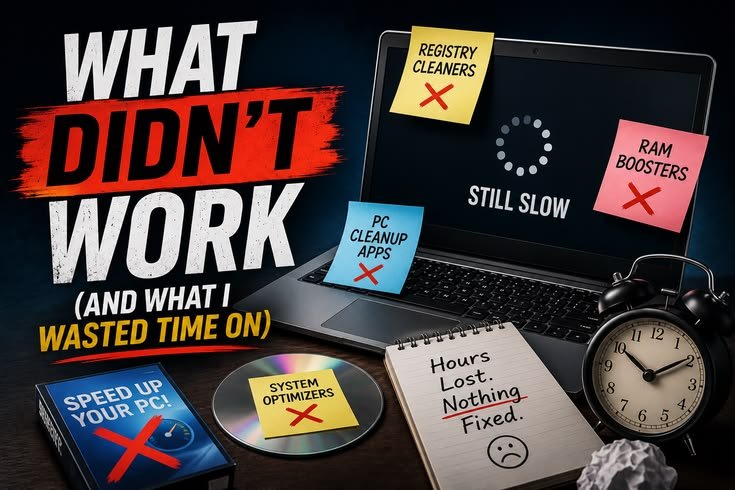
Not everything I tried was useful. A few things I’d tell past-me to skip:
Third-party “PC optimizer” software. Things like CCleaner, PC Booster, and similar tools promise magic results. Some are fine, but many are bloatware themselves, or worse — some of the shadier ones are malware disguised as optimization tools. Windows has built-in tools that do the same things. Use those instead.
Clearing the prefetch folder. I saw this tip online at least five times. The idea is that Windows’ prefetch data is somehow slowing you down. It’s not. Prefetch is Windows learning which apps you use frequently so it can load them faster. Deleting it means Windows has to relearn. Skip this “tip.”
Disabling Windows Search indexing. I tried this once, thinking the indexing service was hogging resources. It is — temporarily, while it runs. But after that initial index, the overhead is minimal. And now my file searches take ten times longer. Not worth it.
The Honest Truth About Older Laptops
All of these steps helped me squeeze real, tangible performance out of an aging machine. But I’d be lying if I said software alone is a complete solution forever. At some point, if you’re running modern software on a machine with 4GB of RAM and a 5400 RPM HDD, you’re going to hit a ceiling no amount of cleanup can fix.
The two hardware upgrades that made the biggest difference when I eventually did spend money: upgrading to 16GB RAM (around ₹2,500–3,000 for used sticks) and swapping the HDD for an SSD (₹3,000–4,000 for a 256GB). Those two changes genuinely made the machine feel new. But that’s a separate conversation for a day when the budget cooperates.
For now — if you’ve never done any of the steps above — do them in order. Most people haven’t. And for most people, just the first two steps alone make a meaningful difference.
The best part about all of this? You learn your own machine. You stop feeling like you have no control over why it’s slow. That matters more than any spec sheet. Your old laptop probably has more life left in it than you think — it just needs someone to actually take care of it.