
What Is Encryption and How Does It Keep Your Data Safe?
The exact moment when I started caring about encryption. I was sitting at a coffee shop in Pune, using the free Wi-Fi to log into my bank account. A friend who worked in cybersecurity was sitting across from me. He watched me type my password, smiled, and said, “You know I could probably intercept that, right?”
I laughed. He didn’t.
That conversation sent me down a rabbit hole that took weeks to climb out of. And the first thing I had to actually understand — not just nod at — was encryption. So let me break it down the way I wish someone had for me back then.
So What Actually Is Encryption?
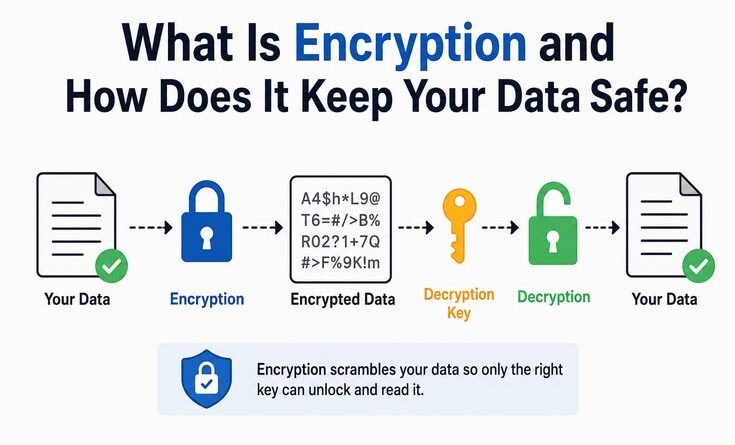
Here’s the simplest way I can put it: encryption is the process of scrambling your data into something unreadable, so only the right person (or device) can unscramble it.
Think of it like a lockbox. You put your letter inside, lock it, and send it off. Even if someone intercepts the box on the way, they can’t read the letter without the key. Encryption does the exact same thing — but with math instead of metal.
When you send a WhatsApp message, visit a website starting with “https://”, or store files on Google Drive, encryption is already working behind the scenes. Most people just never notice it.
How Does It Actually Work? (Without the Math Degree)
There are two main types of encryption you’ll run into in the real world:
1. Symmetric Encryption
Both the sender and the receiver use the same key to lock and unlock the data. It’s fast and efficient, which is why it’s used for encrypting large chunks of data like files or hard drives.
A real-world example: when you enable BitLocker on Windows or FileVault on a Mac to encrypt your laptop’s hard drive, that’s symmetric encryption doing its thing. One key, one lock.
The obvious problem? If you need to share that key with someone else, and the key gets intercepted during transfer — you’re done.
2. Asymmetric Encryption
This is where it gets clever. You have two keys — a public one and a private one. Your public key is like your home address: anyone can have it, anyone can send you something using it. But only your private key can open what was sent to you.
This is how HTTPS works. When you connect to your bank’s website, your browser and the bank’s server do a quick handshake using asymmetric encryption to establish a secure channel. After that, they switch to symmetric encryption because it’s faster.
I know that sounds complicated, but your phone and laptop handle all of this automatically. You never have to do any of it manually.
Encryption in Your Everyday Life (You’re Already Using It)
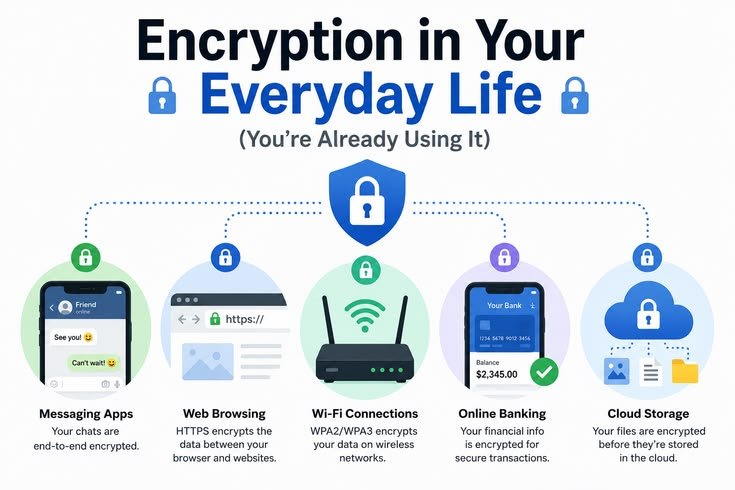
Once I understood the basics, I started noticing encryption everywhere:
- WhatsApp and Signal: Both use end-to-end encryption (E2EE), which means even WhatsApp’s own servers can’t read your messages. Only you and the person you’re texting can.
- Your bank’s website: See that little padlock icon in the browser address bar? That means the site is using TLS (Transport Layer Security) — a form of encryption that protects data between your browser and the server.
- iCloud and Google Drive: Your files are encrypted both in transit (while being uploaded) and at rest (while stored on their servers).
- Your phone’s lock screen: When you set a PIN or use Face ID, the phone uses that to decrypt your storage on the fly. Without it, the data on the phone is just garbage text.
The Time I Learned the Hard Way
A few years back, I was working on a freelance project and shared sensitive client documents through a regular email with no encryption. Nothing bad happened that time — but when I looked back at it, I felt the risk clearly.
Someone on the same network as me, or anyone with access to the mail server between us, could have read every single file. I hadn’t used a service like ProtonMail or sent the files through a password-protected link. I just… attached them and hit send.
After that, I started using tools like:
- ProtonMail for sensitive emails (end-to-end encrypted)
- Bitwarden to store passwords (all data is encrypted locally before syncing)
- Veracrypt to create encrypted containers for sensitive files
- Signal instead of regular SMS for anything confidential
Small changes. Huge difference in peace of mind.
Common Mistakes People Make (That I’ve Also Made)
Assuming HTTPS means a site is safe. HTTPS just means the connection is encrypted. The site itself could still be a scam. Always check the URL carefully, not just the padlock.
Using weak passwords on encrypted files. Encryption is only as strong as your password. A 6-character password on a “secure” zip file isn’t protecting much. Use long, random passwords and a password manager.
Not encrypting local storage. People spend so much energy on online security and then leave an unencrypted USB drive lying around with everything on it. Encrypt your drives. Both Windows and macOS have built-in tools for this.
Thinking encryption means anonymity. This tripped me up early on. Encryption protects the content of your data. It doesn’t hide the fact that you sent data. Your ISP can still see you connected to a particular server — they just can’t see what you sent. If anonymity is your goal, that’s a separate conversation involving VPNs and Tor.
Ignoring end-to-end encryption settings. Some apps offer E2EE but don’t turn it on by default. Telegram, for example, only uses E2EE in “Secret Chats” — not regular chats. Worth knowing.
Step-by-Step: Basic Encryption Habits to Start Today
You don’t need to become a security expert. Just do these things:
- Enable full-disk encryption on your devices. On Windows: search for “BitLocker.” On Mac: go to System Settings → Privacy & Security → FileVault. On iPhone/Android: it’s on by default when you set a passcode.
- Use a password manager. Bitwarden is free and open-source. 1Password is excellent if you want to pay. Both encrypt your vault locally before syncing anywhere.
- Switch to an encrypted messaging app. Signal is the gold standard. WhatsApp is acceptable for most people. Regular SMS is not encrypted — don’t send anything sensitive there.
- Check for HTTPS before entering any personal data. If a site asks for your info and uses plain HTTP (no padlock), close it.
- Use ProtonMail or Tutanota for sensitive emails. Both offer end-to-end encrypted email. Free tiers are available.
- Encrypt sensitive files before sending them. Tools like 7-Zip let you add AES-256 encryption to any archive. Share the password through a different channel (say, over a call).
A Few Real-World Use Cases Worth Knowing
- Journalists and activists rely on encryption to protect sources. Signal is practically standard in those communities for a reason.
- Remote workers on public Wi-Fi should use a VPN, which encrypts all their traffic before it leaves the device. I use Mullvad when I’m at airports or hotels.
- Healthcare apps are legally required to encrypt patient data in most countries. If you’re building or using a health app, this isn’t optional.
- Businesses handling customer data need to encrypt databases. The number of breaches that exposed plain-text passwords (yes, companies still do this) is honestly embarrassing.
What Encryption Can’t Do
This is the part nobody talks about enough.
Encryption protects data in transit and at rest. But once it’s decrypted on your device — it’s just regular data. If your device is compromised by malware, if someone’s looking over your shoulder, or if you give your password to the wrong person — encryption doesn’t help you.
Also, the people you communicate with can still screenshot your messages, share them, or get their device seized. Encryption protects the channel, not the people using it.
The friend who warned me at that coffee shop? He didn’t break any encryption. He just would have captured my data before it was encrypted — right at the keyboard level, using a network tool. The lesson: encryption is powerful, but it’s one layer in a bigger security picture, not the whole picture.
Final Thoughts
Encryption used to feel like something only IT professionals needed to understand. Now it’s just part of daily life, whether you know it or not.
The good news is that most of the heavy lifting is done for you automatically. The padlock appears, the message encrypts, the drive locks — all without you touching a thing. But knowing why it happens and where the gaps are makes you genuinely safer.
That coffee shop conversation changed how I use the internet. Not because it scared me, but because it showed me I had more control than I thought — I just needed to actually use it.
Start with one thing from that list above. Encrypt your phone’s storage, install Bitwarden, or switch to Signal. One small step, and you’ll already be ahead of most people.