15 Keyboard Shortcuts Every Windows User Must Know
still I remember the exact moment I realized I’d been wasting years of my life.
I was sitting next to my colleague Priya during a late-night deadline crunch — the kind where you’re drowning in open tabs, half-finished Word docs, and a slowly dying coffee mug. She was flying through her laptop. Copying, switching windows, closing things, pulling up the desktop — all without once touching the trackpad. I was over there right-clicking everything like someone who just discovered computers.
That was my wake-up call.
I went home, spent a weekend actually learning my keyboard, and I’m not exaggerating when I say it changed how I work. Not in a “life hack” gimmicky way — in a genuine, measurable, saved-me-30-minutes-a-day kind of way.
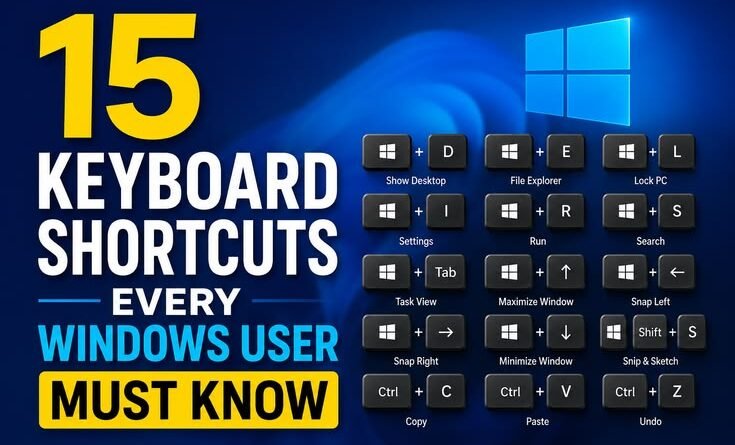
So here are the 15 shortcuts that actually stuck, explained the way I wish someone had explained them to me.
1. Win + D — Show the Desktop Instantly
This one sounds boring until you’re on a video call and your boss says “can you share your screen?” and you’ve got seventeen personal tabs open.
Win + D collapses everything and shows your clean desktop in one keystroke. Hit it again, and everything comes back. It’s a toggle. I use this almost every day before screen shares.
2. Win + L — Lock Your Screen Immediately
If you work in an office, this is non-negotiable.
The moment you walk away from your desk, hit Win + L. Takes less than a second. I learned this the hard way when a coworker “helpfully” sent an email from my account while I was grabbing water. Never again.
3. Alt + Tab — Switch Between Open Windows
You probably know this one. But do you use it properly?
Hold Alt, then keep pressing Tab to cycle through your open windows. If you overshoot, hold Alt + Shift + Tab to go backwards. I do this probably 200 times a day — jumping between my browser, a doc, and Slack without ever touching the taskbar.
4. Win + Tab — The More Visual (and Underrated) Switcher
This is Alt + Tab’s cooler sibling. Press Win + Tab and Windows opens a full Task View — you can see all open apps AND your virtual desktops laid out visually.
Speaking of which…
5. Win + Ctrl + D — Create a New Virtual Desktop
This changed my workflow completely. I now have:
- Desktop 1: Work stuff (email, spreadsheets, docs)
- Desktop 2: Browser research
- Desktop 3: Personal things
Win + Ctrl + D creates a new virtual desktop on the spot. Switch between them with Win + Ctrl + Left/Right Arrow. It’s like having multiple monitors without actually having multiple monitors.
If you’ve never used virtual desktops on Windows, stop reading this, try it right now, then come back.
6. Win + Arrow Keys — Snap Windows Without Dragging
Dragging windows to resize them is a productivity killer. Windows has had a built-in snap feature for years that most people completely ignore.
- Win + Left snaps a window to the left half of your screen
- Win + Right snaps it to the right
- Win + Up maximizes
- Win + Down restores or minimizes
I use Win + Left and Win + Right constantly when I’m comparing two documents side by side. Zero mouse required.
7. Ctrl + Z and Ctrl + Y — Undo and Redo
I know, I know — everyone “knows” Ctrl + Z. But do you know Ctrl + Y?
Ctrl + Z undoes your last action. Ctrl + Y redoes it. I can’t count how many times I’ve undone something, panicked, and then remembered Y brings it back. This works in Word, Excel, Photoshop, browsers — almost everywhere.
8. Ctrl + Shift + T — Reopen a Closed Browser Tab
This one literally makes people gasp when I show them.
You accidentally closed an important tab? Ctrl + Shift + T brings it back. You can keep pressing it to reopen multiple recently closed tabs in order. Works in Chrome, Edge, Firefox — all the major browsers.
I once closed an entire window with 20 tabs in it. Ctrl + Shift + T reopened the whole session. I almost cried with relief.
9. Win + E — Open File Explorer
No more hunting for the folder icon in the taskbar. Win + E opens File Explorer immediately, every time. This is one of those “why didn’t I know this sooner” shortcuts that becomes instant muscle memory.
10. Win + I — Open Windows Settings
Instead of clicking Start → Settings → (waiting) → (clicking around), just press Win + I from anywhere and Settings opens instantly. Super useful when you need to quickly toggle something like Bluetooth, display brightness, or Wi-Fi.
11. Ctrl + Alt + Delete vs. Ctrl + Shift + Esc
Most people reach for Ctrl + Alt + Delete when something freezes. That works, but it takes you to a menu where you then have to click “Task Manager.”
Ctrl + Shift + Esc skips the middle step and opens Task Manager directly. When my laptop is chugging and I need to kill a process fast, this saves precious seconds.
12. Win + . (Period) — Open Emoji Picker
Okay this one’s fun and surprisingly useful.
Win + . (Win + period) opens Windows’ built-in emoji and symbol picker. You can search for any emoji by name. I use this in Slack messages, emails, and even document headers when I want to add a quick visual marker — like a ✅ or ⚠️ — without copy-pasting from Google.
13. Ctrl + Shift + N — New Folder (in File Explorer)
If you’re inside File Explorer and need a new folder, right-clicking and going through the menu is slow. Ctrl + Shift + N creates a new folder instantly, ready to be named.
I organize project files constantly, and this shortcut alone saves me a ridiculous amount of micro-time every week.
14. PrintScreen vs. Win + Shift + S
The old Print Screen (PrtScn) key captures the whole screen and dumps it into your clipboard. It works, but it’s clunky — you have to paste it into Paint or Word to do anything with it.
Win + Shift + S is infinitely better. It opens the Snip & Sketch overlay where you can:
- Select a rectangular region
- Snip a specific window
- Draw a freeform selection
The screenshot is automatically copied to your clipboard and a small notification appears — click it to annotate, crop, or save. This is how I grab screenshots for articles, tutorials, and bug reports now. PrtScn feels prehistoric in comparison.
15. Win + V — Clipboard History
This is probably the most underused power feature in Windows 10 and 11.
Win + V opens your clipboard history — a panel that stores multiple things you’ve copied, not just the last one. You can click any item to paste it, even if you’ve copied something else since then.
First time you press it, Windows might ask you to enable the feature. Do it. Immediately.
I use this when I’m filling forms, moving data between spreadsheets, or drafting emails where I keep referencing the same bits of text. Before I found this, I was constantly re-copying things I’d already copied. That’s just silly in retrospect.
The Mistakes I Made When Learning These
Trying to learn them all at once. Don’t do this. Pick two or three, use them until they’re automatic, then add more. I spent one week just forcing myself to use Win + D and Alt + Tab for everything. By the end, they were reflex.
Forgetting them under pressure. Your old habits kick in hardest when you’re stressed or in a hurry. That’s actually the most important time to use shortcuts, but it’s when your hand automatically goes for the mouse. Be patient with yourself.
Not customizing. Windows lets you change some shortcuts and create your own through tools like AutoHotkey (free, open-source). Once you’re comfortable with the built-ins, exploring AutoHotkey is a logical next step if you want to go deeper.
A Week-Long Challenge (That Actually Works)
Here’s what helped me: I wrote five shortcuts on a sticky note and put it on my monitor. Every time I reached for the mouse to do something on that list, I caught myself and used the keyboard instead.
By day four, I didn’t need the note anymore.
Pick your five from this list. Write them down. Put them somewhere visible. One week. That’s all it takes to start building the habit.
Final Thoughts
I’m not going to pretend keyboard shortcuts will “transform your life” or make you a productivity god. But they do add up — in the same quiet, invisible way that small friction points add up to frustration.
The biggest thing I noticed after getting comfortable with these? I stopped breaking my concentration to fiddle with the mouse. When your hands stay near the keyboard, your brain stays in the task. And honestly, that flow state? That’s the real win.
Start with the ones that match what you do most often. If you’re in a browser all day, begin with Ctrl + Shift + T and Win + Shift + S. If you juggle multiple projects, start with virtual desktops. Build from where you actually live on your computer.
You’ve already used these programs a thousand times. Now you’re just learning to use them faster.
Got a shortcut that changed your workflow? I’d genuinely love to hear it — the best ones I’ve learned came from people like Priya, just showing me things by accident.