How to Use Google Lens to Solve Any Problem Instantly
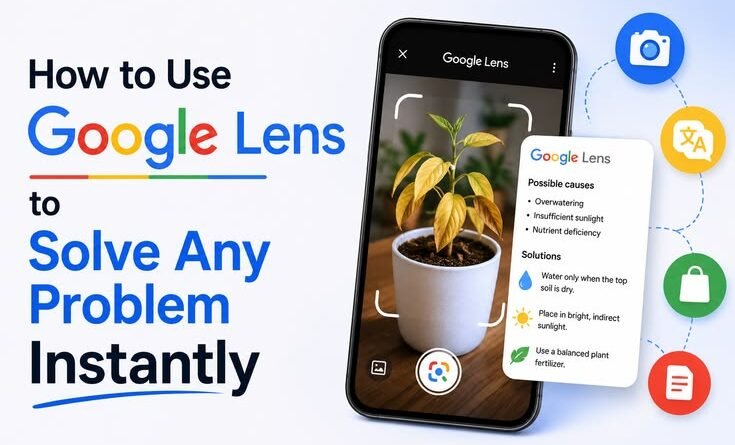
Last month, I was at a local nursery staring at a plant I’d somehow killed — again. The leaves had turned this weird yellowish-brown, and the guy at the counter just shrugged and said, “Could be overwatering, could be underwatering.” Super helpful, right?
So I pulled out my phone, opened Google Lens, pointed it at the sad little plant, and within three seconds I had the plant’s exact species, its ideal watering schedule, the specific deficiency causing those yellow leaves, and a list of treatments. The nursery guy leaned over and went, “Oh wow, what app is that?”
That moment kind of summed up everything I’ve come to love about Google Lens. It’s one of those tools that sounds simple — “just point your camera at stuff” — but once you actually start using it properly, it quietly becomes one of the most useful things on your phone.
What Google Lens Actually Does (Beyond the Obvious)
Most people know you can use it to translate text or identify landmarks. And yeah, it does that. But that’s like saying a Swiss Army knife is good for opening bottles. Technically true, completely undersells it.
Google Lens can:
- Identify plants, animals, insects, mushrooms, and skin conditions
- Extract text from photos and let you copy, translate, or search it
- Solve math problems — literally, just photograph the equation
- Find where to buy something just by taking a picture of it
- Identify dog and cat breeds, bird species, even rock types
- Help you figure out what a pill is (useful if medications get mixed up)
- Scan QR codes and barcodes without a separate app
- Match outfits or furniture to find similar styles online
I use it probably 4-5 times a week now, for things I would’ve previously spent 20 minutes Googling.
How to Open Google Lens (All the Ways)
Here’s something that confused me for a while — Lens doesn’t always live in the same place depending on your phone.
On Android:
- Open the Google app → tap the Lens icon in the search bar (the little camera/magnifying glass icon)
- Or long-press the home button if you have Google Assistant, then tap the Lens icon
- On Pixel phones, it’s built right into the camera app
On iPhone:
- Download the Google app from the App Store
- Tap the Lens icon in the search bar
- Or use it inside Google Photos by selecting an image and tapping “Lens”
From Google Photos (any device):
- Open any photo → tap the Lens icon at the bottom
- This is great for analyzing old photos you’ve already taken
Once you’re in, the interface is simple: you either point the live camera at something, or upload a photo from your gallery.
The Features That Actually Saved Me Time

1. Translate — But Smarter Than You Think
I traveled to Japan a couple years back and was genuinely lost in a supermarket trying to figure out if something contained pork (dietary restriction). Opened Lens, pointed it at the ingredient list in Japanese, and it overlaid the English translation directly onto the packaging in real-time. Not in a separate box — on top of the text, like the label was always in English.
That real-time translation works for menus, signs, books, instruction manuals — anything with text. And it’s fast enough to use while you’re walking.
How to use it:
- Open Lens → tap “Translate” at the bottom toolbar
- Point camera at any text
- It auto-detects the language and overlays the translation live
Pro tip: if you want to translate a photo you already took, open it in Google Photos, tap Lens, and select the text you want translated.
2. Search — Find Anything You Can See
This is the one I use most. Found a cool lamp at a thrift store and wanted to see if it was worth anything? Lens found the exact model, the brand, and similar listings on eBay within seconds. Wanted to recreate a coffee shop outfit I liked? Pointed Lens at it, and it pulled up similar jackets and shoes on shopping sites.
How to use it:
- Open Lens → point at the object
- Tap the shutter button
- Browse “Visual matches” results below
- Filter by Shopping, Images, or Products
The shopping tab is genuinely useful — it compares prices across stores, which I didn’t expect.
3. Homework Mode (Yes, Really)
My younger cousin was struggling with a geometry problem during his board exam prep. I showed him Lens and watched his eyes go wide. You literally photograph the problem — whether it’s an equation, a geometry diagram, or a word problem — and Lens walks through the solution step by step.
It’s not just giving you the answer. It shows the working. My cousin said it explained it better than his textbook did.
How to use it:
- Open Lens → tap “Homework” in the toolbar (or just point at the problem in regular Search mode)
- Frame the equation or problem
- Tap the result — you’ll get step-by-step solutions with explanations
It handles algebra, calculus, trigonometry, chemistry equations, and even some physics. Don’t use it to cheat on exams, obviously — but for actually understanding how to solve something, it’s legitimately excellent.
4. Text Extraction (The One I Recommend to Everyone)
You got a business card. A printed schedule. A recipe from your grandma’s handwritten notebook. A screenshot of text you want to copy. Lens can pull the text out of any of these and let you copy it directly.
How to use it:
- Open Lens → tap “Text” in the toolbar
- Point at or upload the image
- Tap “Select All” or highlight specific text
- Copy, search, or share it
I used this recently to digitize about 30 pages of handwritten meeting notes from a conference. Took 10 minutes instead of hours of retyping.
Mistakes I Made (So You Don’t Have To)
Using it in bad lighting. Lens really struggles with shadows and low light. I once tried to identify a mushroom on a forest hike in pretty dim conditions and it gave me three completely different species. Go somewhere brighter, or turn on your flashlight.
Not cropping in on the right object. If you’re pointing Lens at a shelf full of products, it gets confused about what you’re asking about. After you take the shot, you can drag the selection box to focus on the specific item you care about. That helps a lot.
Trusting plant ID 100%. I’ve been burned by this. Lens identified something in my garden as completely harmless, and it was actually a fairly irritating weed that spreads aggressively. For anything related to plants you might eat, or anything you’re about to touch extensively — double-check with a second source like iNaturalist or PlantNet.
Forgetting it works on screenshots. This took me way too long to figure out. You don’t have to take a live photo. You can screenshot anything on your phone — a product you saw in an Instagram story, a meme referencing a movie you can’t place, a piece of furniture in a YouTube video — and run Lens on it from your Photos app.
Some Genuinely Surprising Use Cases
A friend of mine works in fashion retail and uses Lens to instantly pull up competitor pricing when a customer mentions they saw something cheaper elsewhere. Takes three seconds.
My dad used it on a spider in our garden that nobody could identify (turned out to be a harmless orb weaver, which calmed everyone down considerably).
I’ve used it on wine labels at restaurants when I had no idea what to order, and it pulled up reviews and flavor profiles instantly — without me having to awkwardly Google “is this wine good.”
Someone in a cooking forum I follow uses it on dishes at restaurants to try to reverse-engineer recipes. Lens identifies the dish, and then they search for similar recipes. It’s not perfect, but it’s a genuinely creative use.
What Lens Isn’t Great At
I want to be honest here because I’ve seen some articles oversell it.
Lens can be hit-or-miss with identifying specific people — it’s deliberately limited there for privacy reasons. It sometimes struggles with very similar-looking items (like identifying which exact model of a car, or differentiating between two very similar plant species). It’s not a replacement for a doctor when it comes to skin conditions or medical stuff — use it to start a conversation with a professional, not to end one.
And if you’re using it to identify a rare or antique item, treat it as a first guess, not a final answer. I got burned once thinking a vintage camera was worth a lot based on a Lens result that wasn’t quite right on the model.
How to Get More Out of It Going Forward
The single biggest upgrade you can make to how you use Lens: add it to your home screen or quick settings. On Android, you can add a Lens widget or shortcut so you’re one tap away from using it instead of digging through apps. Those extra three seconds of friction matter more than you’d think — a lot of the value of Lens is using it in the moment, and if it takes too long to open, you just won’t bother.
Also, if you’re a heavy Google Photos user, go back through your camera roll sometime and start Lens-ing photos you never quite understood. Old receipts you need to digitize. Plants in photos from trips. Mysterious objects at estate sales. There’s a lot of value sitting in your old photos that you’ve never unlocked.
Google Lens has been around for years now, but most people are still using about 20% of what it can actually do. The next time you’re staring at something and thinking “I wish I knew what this was” — your phone already has the answer. You just have to point it.